
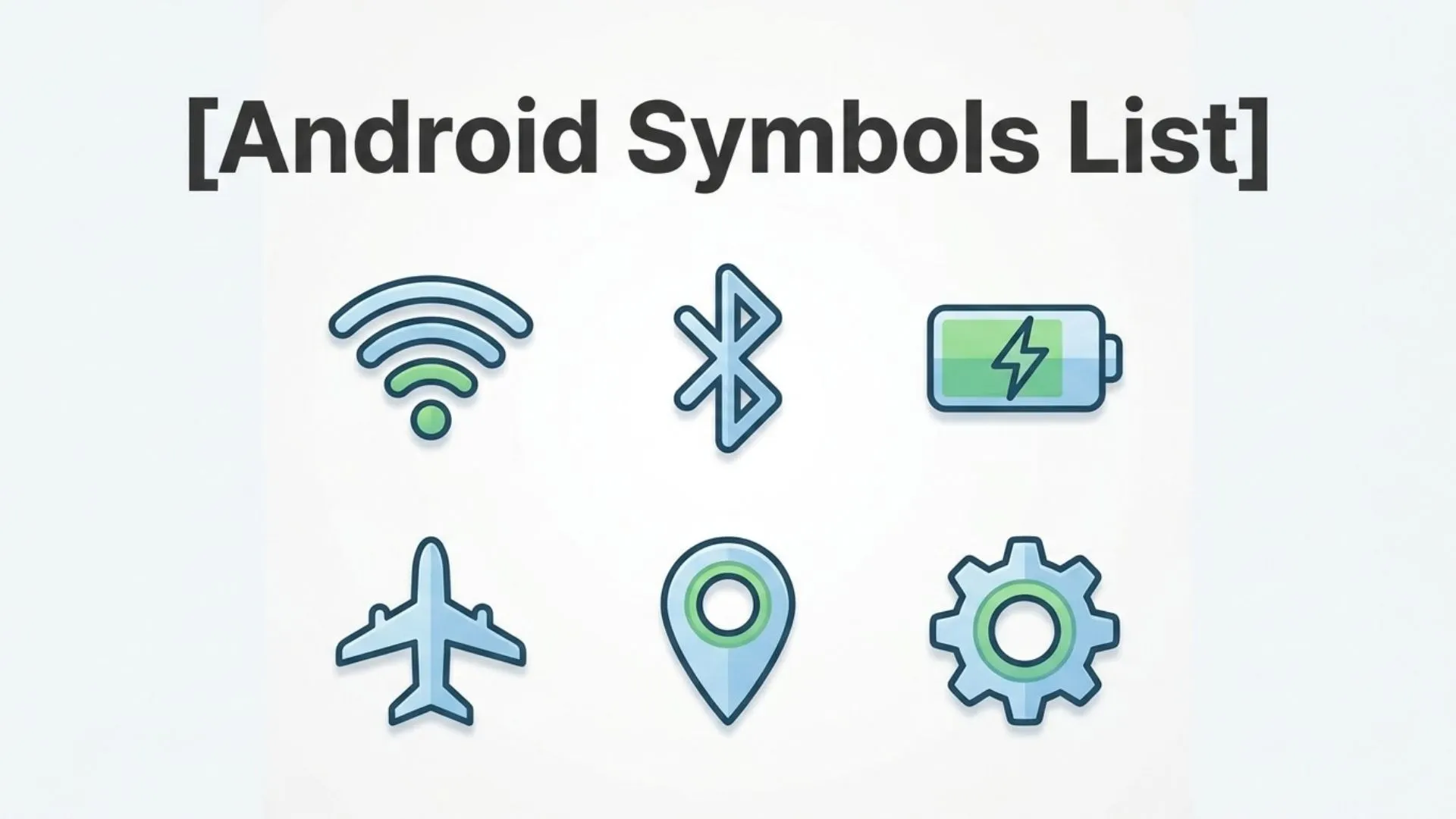
If you’ve ever looked at the top of your Android phone and wondered what a particular icon means, you’re not alone. Android devices display dozens of symbols in the status bar, notification panel, Quick Settings, and app interfaces. While some icons are instantly recognizable, others can be confusing, especially after a software update or when switching to a new Android phone.
This complete Android symbols list explains the most common Android icons, their meanings, and how they affect your device. Whether you’re using a Samsung Galaxy, Google Pixel, OnePlus, Motorola, Xiaomi, Oppo, Vivo, or another Android smartphone, many of these symbols follow Google’s Android design guidelines, although manufacturers may customize certain icons.
By the end of this guide, you’ll understand the meaning of Android symbols, know where they appear, and learn how to manage or remove them when necessary.
Android Symbols List (Meaning and Overview)
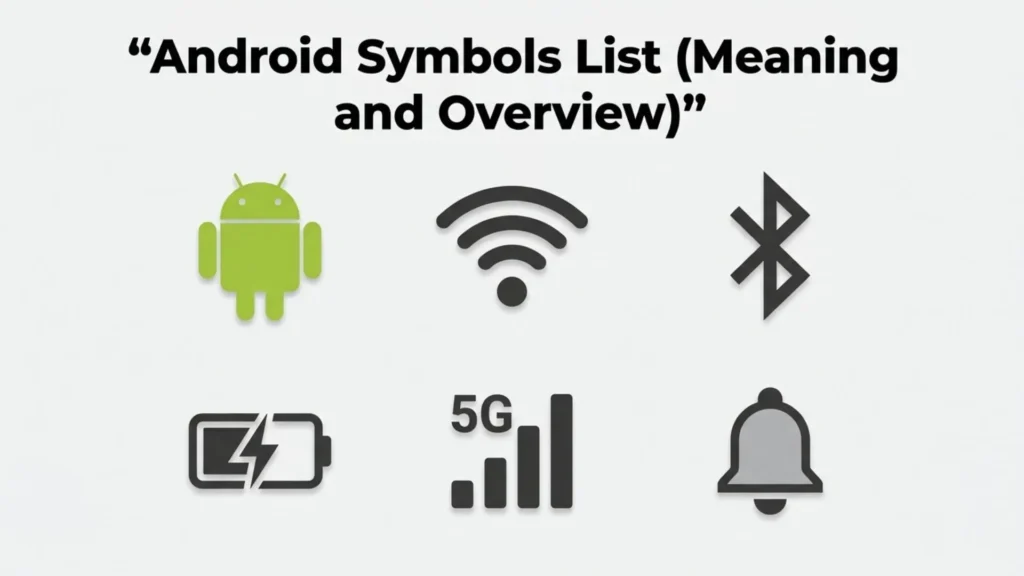
Android symbols are small graphical icons that communicate information about your phone’s status, features, notifications, and settings. Instead of displaying long text messages, Android uses a symbolic representation that users can recognize at a glance.
These icons appear in several locations:
- Status bar
- Notification panel
- Quick Settings
- Lock screen
- Home screen
- System Settings
- Individual apps
Each icon serves as a communication symbol that informs you about your phone’s connectivity, battery, security, location, calls, messages, downloads, and more.
Although manufacturers may redesign some icons, their overall function remains largely the same across Android devices.
History and Origin
Android was introduced by Google in 2008 with the goal of creating an intuitive mobile operating system. From the beginning, visual icons became a key part of its user interface because they could communicate information quickly without taking up much screen space.
Early Android versions included only basic symbols for battery level, Wi-Fi, mobile signal, Bluetooth, and alarms. As Android evolved, Google introduced Material Design and later Material You, making icons cleaner, more consistent, and easier to recognize.
Today’s Android operating system supports hundreds of icons, including notification symbols, accessibility icons, privacy indicators, navigation controls, and app-specific notifications. While these are not Unicode symbols or text symbols, they function as digital characters designed for visual communication.
Types, Variations, or Categories
Android symbols can be grouped into several major categories based on their purpose.
Status Bar Symbols
Status bar icons appear at the very top of your screen and provide real-time information about your device.
Common status icons include:
- Battery
- Wi-Fi
- Mobile signal
- Airplane Mode
- Bluetooth
- Alarm
- Silent Mode
- VPN
- NFC
- Location Services
These symbols continuously update as your phone’s status changes.
Notification Icons
Notification icons alert you about events that require attention.
Examples include:
- New message
- Missed call
- Email received
- Calendar reminder
- Software update
- Download complete
- Social media notification
- Weather alerts
- Banking notifications
Tapping the notification expands it for more details.
Quick Settings Icons
Quick Settings provide shortcuts for frequently used features.
Popular icons include:
- Wi-Fi
- Mobile Data
- Flashlight
- Hotspot
- Do Not Disturb
- Auto Rotate
- Screen Cast
- Battery Saver
- Nearby Share
- Dark Theme
These icons allow users to enable or disable features with a single tap.
Common Android Status Bar Symbols
Understanding the most common Android status icons makes daily phone use much easier.
Battery Icon
The battery icon shows your current battery level.
Variations include:
- Charging
- Fast charging
- Fully charged
- Battery Saver enabled
- Low battery warning
Some Android versions also display the battery percentage.
Wi-Fi Symbol
The Wi-Fi icon indicates your phone is connected to a wireless network.
A filled icon usually means a stronger signal.
An exclamation mark may indicate limited internet access.
Mobile Signal Bars
Signal bars represent cellular network strength.
More bars indicate a stronger mobile connection.
Letters beside the bars often include:
- 5G
- LTE
- 4G
- 3G
- H+
- E
These indicate your current mobile network technology.
Airplane Mode
The airplane icon means all wireless communication has been disabled.
While enabled:
- Cellular service stops
- Mobile data disconnects
- Calls and texts are unavailable
Wi-Fi and Bluetooth can usually be re-enabled manually.
Bluetooth Icon
The Bluetooth symbol appears when Bluetooth is enabled.
Additional variations may indicate:
- Connected device
- Audio streaming
- File transfer
- Wireless earbuds connected
Alarm Clock
A small alarm icon means at least one alarm has been scheduled.
The icon disappears after all alarms are turned off.
VPN Symbol
A key-shaped icon usually indicates an active Virtual Private Network (VPN).
This means your internet traffic is encrypted through a VPN service.
Location Icon
A location pin appears when GPS or location services are being used.
Common apps using location include:
- Google Maps
- Weather apps
- Ride-sharing apps
- Fitness trackers
Android Privacy Indicators
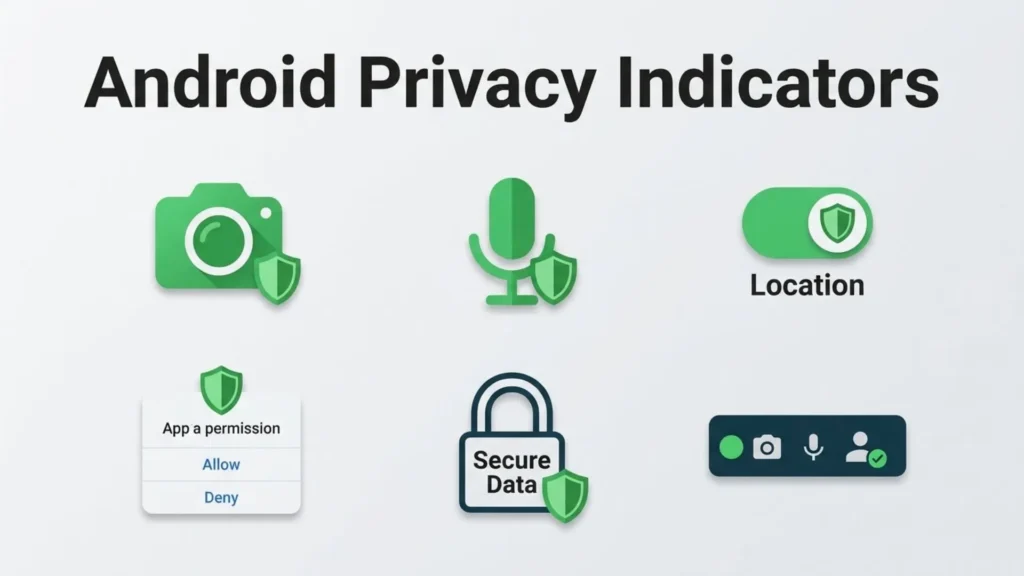
Recent Android versions introduced privacy indicators to improve transparency.
Camera Indicator
A green camera icon appears when an app is using your camera.
This helps identify apps accessing your camera in real time.
Microphone Indicator
A green microphone icon appears whenever an app uses your microphone.
Voice recorders, video calls, and voice assistants commonly trigger this symbol.
Combined Privacy Indicator
Some Android versions display a green dot when either the camera or microphone is active.
This visual representation helps users identify potential privacy concerns.
Connectivity Symbols
Several Android icons indicate wireless connections.
NFC Symbol
NFC allows contactless payments and quick device pairing.
If enabled, the NFC icon may appear in the status bar.
Hotspot Icon
This icon indicates your phone is sharing its mobile internet with other devices.
Cast Symbol
The Cast icon appears when streaming your screen or media to another display.
Examples include:
- Smart TVs
- Chromecast
- Wireless monitors
Sync Icon
The synchronization icon appears when Android is syncing data.
Examples include:
- Contacts
- Photos
- Calendar
Notification Symbols Explained
Apps generate notification icons to keep users informed.
Examples include:
Messages
A speech bubble indicates unread text messages.
An envelope icon signals new email.
Phone
A phone handset may indicate:
- Missed call
- Ongoing call
- Voicemail
Downloads
A downward arrow usually means a file is downloading.
A checkmark often confirms the download is complete.
Updates
A download or gear icon may indicate:
- System update
- Security patch
- App updates
Keeping Android updated improves security and performance.
Manufacturer-Specific Android Symbols
Although Android has standard icons, manufacturers sometimes introduce unique designs.
Samsung
Samsung One UI includes additional symbols for:
- Secure Folder
- Smart View
- Link to Windows
- Bixby features
Google Pixel
Pixel phones generally use Google’s stock Android icons.
Privacy indicators and Material You icons appear first on Pixel devices.
Xiaomi
MIUI and HyperOS may include unique symbols for:
- Game Turbo
- Cleaner
- Security Center
- Floating Windows
OnePlus
OnePlus OxygenOS includes icons for:
- Zen Mode
- Gaming Mode
- Alert Slider status
While the appearance varies, the underlying function remains similar.
Common Uses and Applications
Android symbols simplify device management by providing instant visual feedback.
Their primary uses include:
- Monitoring battery health
- Checking network connectivity
- Viewing active features
- Managing notifications
- Improving privacy awareness
- Navigating phone settings
- Identifying ongoing background activities
Without these icons, users would need to open multiple menus just to check their phone’s status.
Symbolism, Significance, or Importance
Android symbols improve usability by replacing lengthy text with universally understood icons.
These symbols:
- Save screen space
- Reduce language barriers
- Speed up navigation
- Improve accessibility
- Provide instant feedback
- Enhance user experience
Modern Android design emphasizes simple iconography because people recognize visual information faster than written text.
How to Use Android Symbols Effectively
Learning Android symbols helps you manage your device more efficiently.
Here are a few practical tips:
Check the Notification Panel
Swipe down from the top of the screen to view detailed information about any notification icon.
Customize Quick Settings
Most Android phones let you rearrange Quick Settings icons so your favorite controls are easier to access.
Learn Privacy Indicators
If the camera or microphone indicator appears unexpectedly, review app permissions immediately.
Manage Status Icons
Some manufacturers allow users to hide selected status bar icons through the Settings menu.
Keep Software Updated
New Android versions occasionally introduce new symbols or redesign existing ones.
Interesting Facts
- Android includes hundreds of built-in interface icons.
- Material Design standardized icon shapes across Android apps.
- Privacy indicators were introduced to give users more control over app permissions.
- Many Android icons are inspired by internationally recognized communication symbols.
- Manufacturers customize icons while preserving their core functionality.
- Android icons are designed to be understood regardless of language.
- Some accessibility features include larger icons for improved visibility.
- Notification icons automatically disappear after notifications are cleared.
Common Mistakes or Misconceptions
Assuming Every Android Phone Uses Identical Icons
Different manufacturers often redesign icons, although their meanings usually remain the same.
Ignoring Privacy Indicators
Many users overlook camera and microphone indicators, which are important for protecting personal privacy.
Thinking Every Notification Requires Immediate Action
Some notification symbols are purely informational and don’t require user input.
Confusing Wi-Fi with Mobile Data
These two connectivity symbols represent different internet connections.
Understanding the distinction helps troubleshoot network issues.
Believing Status Icons Cannot Be Customized
Many Android phones allow users to customize Quick Settings, notification behavior, and even status bar visibility.
Frequently Asked Questions
What do Android symbols mean?
Android symbols are visual icons that display information about your phone’s status, notifications, settings, and active features.
Why do Android icons look different on Samsung and Pixel phones?
Manufacturers customize Android’s interface, so icon designs may vary while their functions remain similar.
What is the green dot on Android?
The green privacy indicator shows that an app is currently using your camera or microphone.
Why does the VPN icon appear?
The VPN symbol indicates your internet connection is being routed through a Virtual Private Network.
Can I hide Android status bar icons?
Many Android devices allow you to customize or hide certain status icons through the Settings app or system interface.
What does the airplane symbol mean?
Airplane Mode disables cellular communication while allowing certain wireless features, such as Wi-Fi or Bluetooth, to be enabled manually.
Why do notification icons keep appearing?
Notification icons remain visible until the associated notification is opened, dismissed, or the app no longer has information to display.
Conclusion
Understanding the Android symbols list makes using your smartphone much easier. These small icons communicate essential information about battery life, network connections, privacy, notifications, device settings, and system activity without requiring lengthy explanations. While manufacturers such as Samsung, Google, Xiaomi, and OnePlus may customize their appearance, the underlying meanings remain consistent across most Android devices. Learning these symbols helps you troubleshoot issues faster, improve your phone’s security, manage notifications efficiently, and make the most of your Android.

Daniel Carter is a writer and researcher focused on symbols, their meanings, origins, and practical uses. He enjoys turning complex symbolic concepts into simple, easy-to-understand explanations for everyday readers. Through his work, Daniel explores cultural, technical, historical, and commonly used symbols, helping readers understand what they mean and where they are used.
His work includes The Complete Guide to Symbols, Understanding Symbols and Their Meanings, and A Visual Guide to Common Symbols.