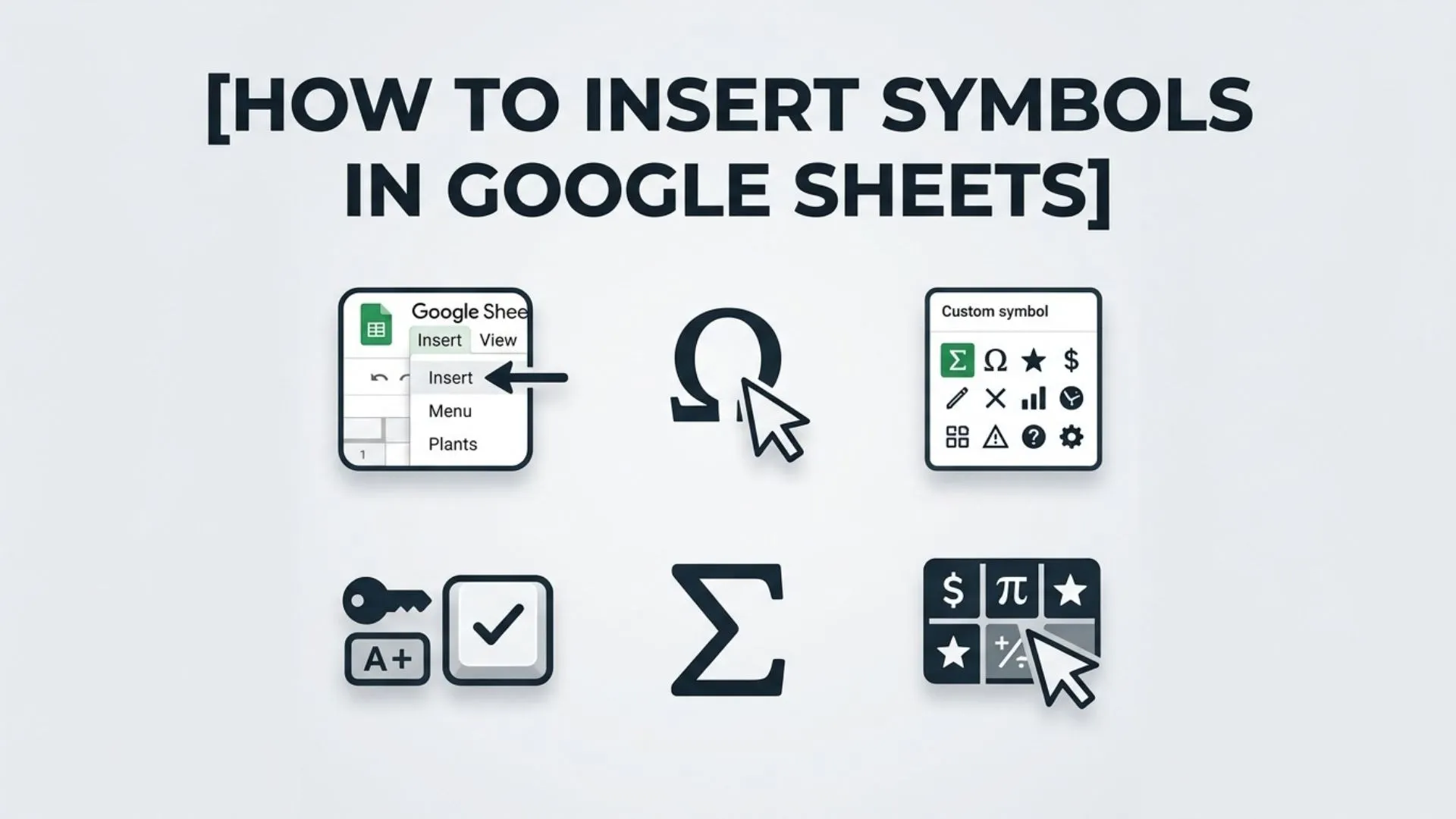
Google Sheets is a powerful spreadsheet application used by millions of people for organizing data, tracking projects, creating reports, and collaborating online. While most users rely on numbers and text, symbols can make spreadsheets much more informative and visually appealing.
Whether you’re adding check marks to a task list, arrows to indicate trends, stars for ratings, currency symbols, mathematical operators, or emojis for dashboards, knowing how to insert symbols in Google Sheets can improve both readability and functionality.
Unlike some word processors, Google Sheets doesn’t have a dedicated Symbol menu filled with hundreds of characters. However, there are several simple methods for adding symbols, including keyboard shortcuts, Unicode characters, the CHAR function, copy-and-paste techniques, and Google Sheets formulas.
This comprehensive guide explains how to insert symbols in Google Sheets using every available method. You’ll also learn practical examples, common mistakes to avoid, and the best ways to use symbols professionally in your spreadsheets.
How to Insert Symbols in Google Sheets (Meaning and Overview)
When people search for how to insert symbols in Google Sheets, they usually want to know how to add special characters, icons, Unicode symbols, emojis, mathematical operators, arrows, currency signs, or decorative symbols into spreadsheet cells.
A symbol is any visual character that represents an idea, action, value, or object beyond standard alphabetic letters and numbers. Examples include:
- ✓ Check marks
- ★ Stars
- → Arrows
- © Copyright
- ™ Trademark
- ° Degree sign
- € Euro
- ₹ Indian Rupee
- ♠ Card suits
- ♥ Hearts
- ⚠ Warning signs
These symbols enhance communication by presenting information quickly and clearly.
Google Sheets supports thousands of Unicode symbols, making it possible to insert nearly every modern text symbol and digital character available.
History and Origin
Special characters have existed since early writing systems, but modern computing standardized them through Unicode, a universal character encoding system introduced in the early 1990s.
Before Unicode, different operating systems often displayed symbols differently. Unicode solved this problem by assigning every symbol a unique code point, ensuring consistent display across platforms.
Google Sheets uses Unicode to support thousands of special characters from languages and symbol sets around the world. This allows users to insert mathematical symbols, currency signs, arrows, emojis, scientific notation, and communication symbols directly into spreadsheet cells.
As spreadsheets evolved beyond simple accounting tools, symbols became increasingly important for dashboards, project management, financial analysis, inventory tracking, and business reporting.
Types, Variations, or Categories
Google Sheets supports many categories of symbols.
Mathematical Symbols
These include:
- ± Plus-minus
- × Multiplication
- ÷ Division
- ≈ Approximately equal
- ≤ Less than or equal
- ≥ Greater than or equal
- ∞ Infinity
These symbols are useful in education, engineering, and scientific calculations.
Currency Symbols
Popular currency symbols include:
- $ US Dollar
- € Euro
- £ British Pound
- ¥ Japanese Yen
- ₹ Indian Rupee
- ₩ South Korean Won
These characters are commonly used in financial spreadsheets.
Decorative Symbols
Decorative symbols improve visual organization.
Examples include:
- ★ Stars
- ♥ Hearts
- ◆ Diamonds
- ● Circles
- ■ Squares
- ✿ Flowers
These icons work well in planners, trackers, and templates.
Method 1: Copy and Paste Symbols
The easiest way to insert symbols in Google Sheets is by copying and pasting them.
Step 1
Find the symbol you want.
Examples:
- ✓
- ✔
- ★
- ☆
- →
- ←
- ▲
- ▼
- ☀
- ☁
Step 2
Copy the symbol.
Step 3
Click the desired cell in Google Sheets.
Step 4
Paste using:
- Ctrl + V (Windows)
- Command + V (Mac)
This method works for virtually every Unicode symbol.
Method 2: Use the CHAR Function
The CHAR function generates symbols from Unicode decimal values.
Syntax:
=CHAR(number)
Examples:
=CHAR(9733)
Returns:
★
=CHAR(10003)
Returns:
✓
=CHAR(8594)
Returns:
→
This method is especially useful when symbols are generated dynamically through formulas.
Method 3: Keyboard Shortcuts
Some symbols can be inserted using keyboard shortcuts.
Windows examples include:
- Alt + 0176 = °
- Alt + 0169 = ©
- Alt + 0174 = ®
- Alt + 0153 = ™
Mac users can access many symbols through:
- Option key combinations
- Character Viewer
- Emoji & Symbols panel
Keyboard shortcuts are ideal for frequently used characters.
Method 4: Use the Emoji Keyboard
Google Sheets fully supports emojis.
Windows:
Press:
Windows + .
Mac:
Press:
Control + Command + Space
Search for:
- Check
- Star
- Fire
- Calendar
- Money
- Warning
Click the emoji to insert it directly into the selected cell.
Method 5: Google Docs Symbol Picker
Although Google Sheets doesn’t include a built-in symbol picker, Google Docs does.
You can:
- Open Google Docs.
- Select Insert > Special Characters.
- Search for a symbol.
- Copy it.
- Paste it into Google Sheets.
This method provides access to thousands of Unicode characters.
Method 6: Use Google Sheets Functions with Unicode
You can combine Unicode symbols with formulas.
Example:
=”✓ Completed”
Result:
✓ Completed
Or:
=”★ “&A2
This displays:
★ Product Name
These formulas are useful for dashboards and automated reports.
Popular Symbols Used in Google Sheets
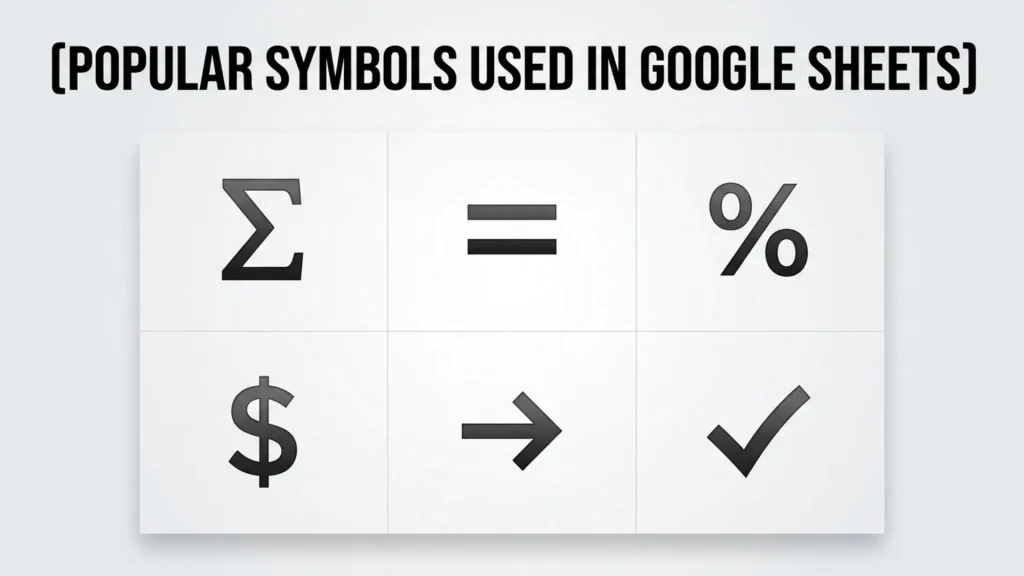
Here are some commonly used symbols.
Check Marks
Examples:
- ✓
- ✔
- ☑
Applications:
- Task lists
- Progress trackers
- Completed items
Stars
Examples:
- ★
- ☆
Applications:
- Ratings
- Reviews
- Performance scores
Arrows
Examples:
- ↑
- ↓
- →
- ←
- ↗
- ↘
Applications:
- Trends
- Navigation
- Growth indicators
Warning Symbols
Examples:
- ⚠
- ⛔
Applications:
- Alerts
- Errors
- Important notes
Currency Symbols
Examples:
- $
- €
- £
- ¥
- ₹
Applications:
- Budgets
- Accounting
- Financial reports
Relevant Subsection: Using Symbols in Conditional Formatting
Symbols become even more useful when combined with conditional formatting.
Examples include:
- Green ✓ for completed tasks
- Red ✗ for overdue items
- Yellow ⚠ for warnings
- ▲ for increasing values
- ▼ for decreasing values
These visual indicators make dashboards easier to interpret.
Relevant Subsection: Creating Interactive Dashboards
Symbols improve dashboard design.
Examples:
- ⭐ Top performers
- 📈 Sales growth
- 📉 Revenue decline
- ✅ Approved projects
- ❌ Rejected requests
Icons reduce the need for lengthy text while improving readability.
Relevant Subsection: Unicode Symbols vs Emojis
Although many users treat them the same, Unicode symbols and emojis differ.
Unicode symbols include:
- Mathematical operators
- Currency signs
- Arrows
- Technical characters
Emojis are colorful pictographs representing objects, emotions, weather, food, transportation, and activities.
Google Sheets supports both.
Common Uses and Applications
Symbols are widely used in spreadsheets.
Popular applications include:
Project Management
- Task completion
- Milestones
- Status tracking
Financial Reports
- Currency symbols
- Growth arrows
- Warning indicators
Inventory Management
- Stock availability
- Priority levels
- Product ratings
Education
Teachers use symbols for:
- Grades
- Attendance
- Progress tracking
Business Dashboards
Executives often use icons for:
- KPIs
- Performance metrics
- Sales reports
- Customer satisfaction
Symbolism, Significance, or Importance
Symbols improve communication by replacing lengthy explanations with instantly recognizable visual representations.
Benefits include:
- Faster data interpretation
- Better readability
- Improved spreadsheet organization
- Enhanced presentations
- Easier dashboard navigation
- Professional appearance
Unlike decorative graphics, text symbols remain searchable, copyable, and compatible with spreadsheet formulas.
Their symbolic significance lies in simplifying complex information into clear, recognizable characters.
How to Use Symbols Effectively
To get the most value from symbols in Google Sheets:
Keep Symbols Consistent
Use the same check mark or star throughout your spreadsheet.
Consistency improves readability.
Avoid Overusing Symbols
Too many icons can clutter a worksheet.
Use symbols only where they add value.
Combine Symbols with Text
Instead of using symbols alone, pair them with descriptive labels when appropriate.
Example:
✓ Completed
⚠ Review Required
Test Compatibility
Some rare Unicode symbols may display differently depending on fonts or operating systems.
Always preview important spreadsheets before sharing.
Interesting Facts
- Google Sheets supports thousands of Unicode characters.
- Every emoji is based on a Unicode code point.
- The CHAR function can generate many symbols automatically.
- Symbols can be combined with formulas, conditional formatting, and data validation.
- Unicode currently includes well over 100,000 characters from numerous writing systems and symbol sets.
- Many professional dashboards rely on simple Unicode symbols instead of images because they load faster and remain editable.
Common Mistakes or Misconceptions
Thinking Google Sheets Has a Symbol Menu
Unlike Google Docs or Microsoft Word, Google Sheets doesn’t include a dedicated Special Characters menu.
Using Images Instead of Symbols
Unicode symbols scale better, remain editable, and work inside formulas.
Forgetting Font Compatibility
Not every font supports every Unicode character.
Switching fonts may change how some symbols appear.
Overloading Cells
Too many decorative symbols reduce readability.
Keep formatting simple and purposeful.
Confusing Emojis with Unicode Symbols
Although emojis are part of Unicode, not every Unicode character is an emoji.
Traditional text symbols often look cleaner in professional spreadsheets.
Frequently Asked Questions
How do I insert symbols in Google Sheets?
You can insert symbols by copying and pasting them, using the CHAR function, entering keyboard shortcuts, or inserting emojis through your operating system’s emoji picker.
Does Google Sheets have a built-in symbol menu?
No. Google Sheets doesn’t have a dedicated symbol library, but you can use Unicode characters, emojis, and formulas to add symbols.
Can I use Unicode symbols in formulas?
Yes. Unicode symbols work with formulas, text strings, and functions like CHAR().
What is the CHAR function in Google Sheets?
The CHAR function returns a Unicode character based on its numeric code, making it easy to generate symbols dynamically.
Can I use symbols in conditional formatting?
Yes. Symbols work well with conditional formatting to highlight completed tasks, warnings, trends, and performance indicators.
Why do some symbols look different on another device?
The appearance of certain Unicode characters depends on the available fonts and operating system. Most common symbols display consistently across modern devices.
Are emojis supported in Google Sheets?
Yes. Google Sheets supports emojis, which can be inserted using your device’s emoji keyboard or by copying and pasting them into cells.
Conclusion
Learning how to insert symbols in Google Sheets is a simple way to make your spreadsheets more organized, visually appealing, and easier to understand. Whether you’re using Unicode characters, the CHAR() function, keyboard shortcuts, emojis, or copy-and-paste methods, symbols can improve everything from project trackers and financial reports to business dashboards and educational worksheets.
By understanding the different methods and choosing the right symbols for each situation, you can communicate information more effectively while maintaining a clean and professional spreadsheet. With thousands of Unicode characters available, Google Sheets offers plenty of flexibility to enhance your data without relying on images or complex formatting.

Daniel Carter is a writer and researcher focused on symbols, their meanings, origins, and practical uses. He enjoys turning complex symbolic concepts into simple, easy-to-understand explanations for everyday readers. Through his work, Daniel explores cultural, technical, historical, and commonly used symbols, helping readers understand what they mean and where they are used.
His work includes The Complete Guide to Symbols, Understanding Symbols and Their Meanings, and A Visual Guide to Common Symbols.