
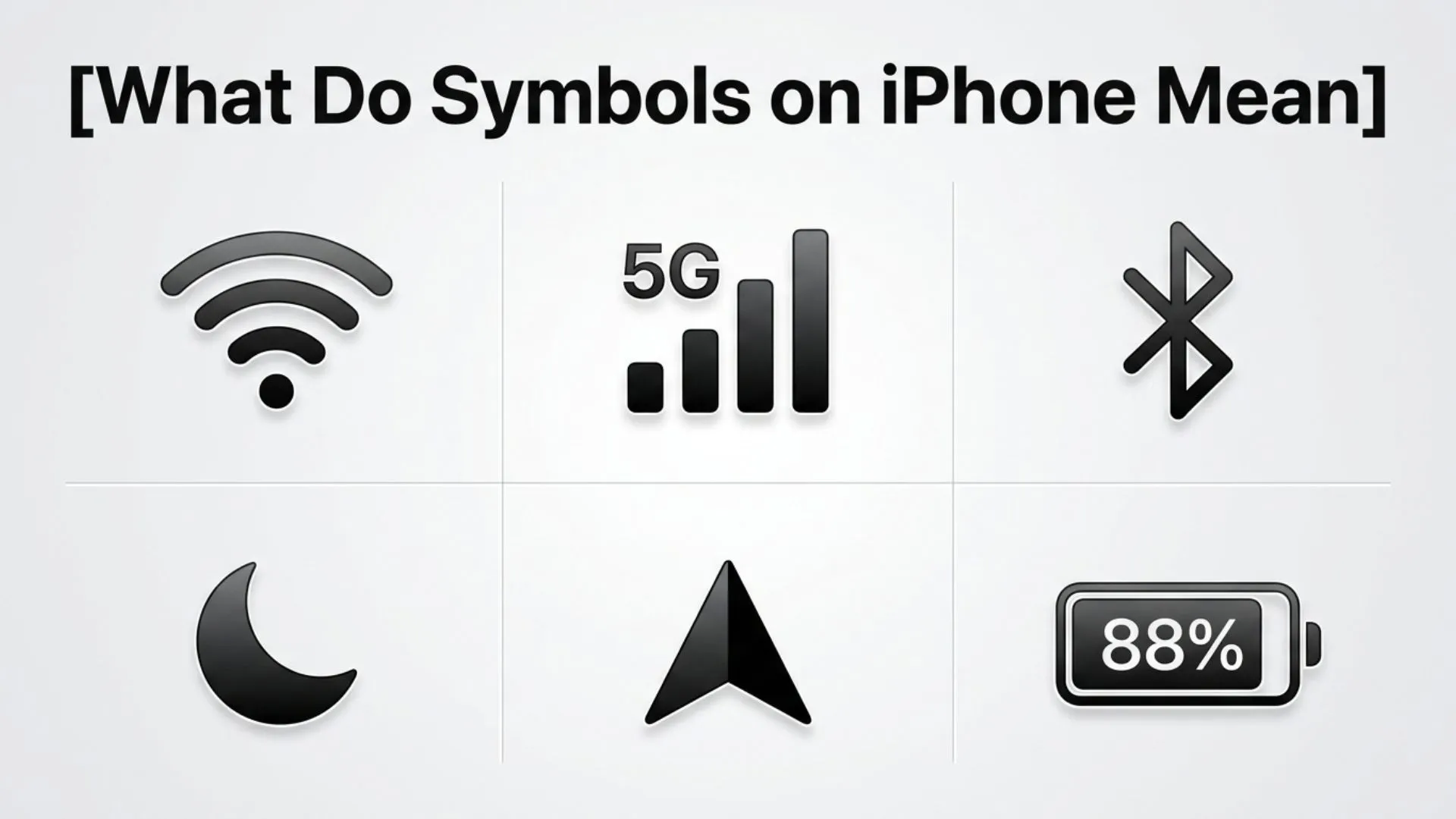
If you’ve ever glanced at the top of your iPhone screen and wondered what a small icon means, you’re not alone. Apple uses dozens of symbols to communicate important information about your device’s connection, battery, privacy, security, and system status. While some icons, like the Wi-Fi or battery symbol, are instantly recognizable, others such as the orange and green privacy indicators, Focus mode icons, or satellite symbols can leave users confused.
Understanding what symbols on iPhone mean helps you use your device more efficiently, troubleshoot issues faster, and protect your privacy. These small visual indicators are designed to provide instant updates without interrupting your workflow.
This complete guide explains the meanings of the most common iPhone symbols, where they appear, why they matter, and how to manage them. Whether you’re using the latest iPhone or an older model, you’ll find clear explanations for every important icon.
What Do Symbols on iPhone Mean (Meaning and Overview)
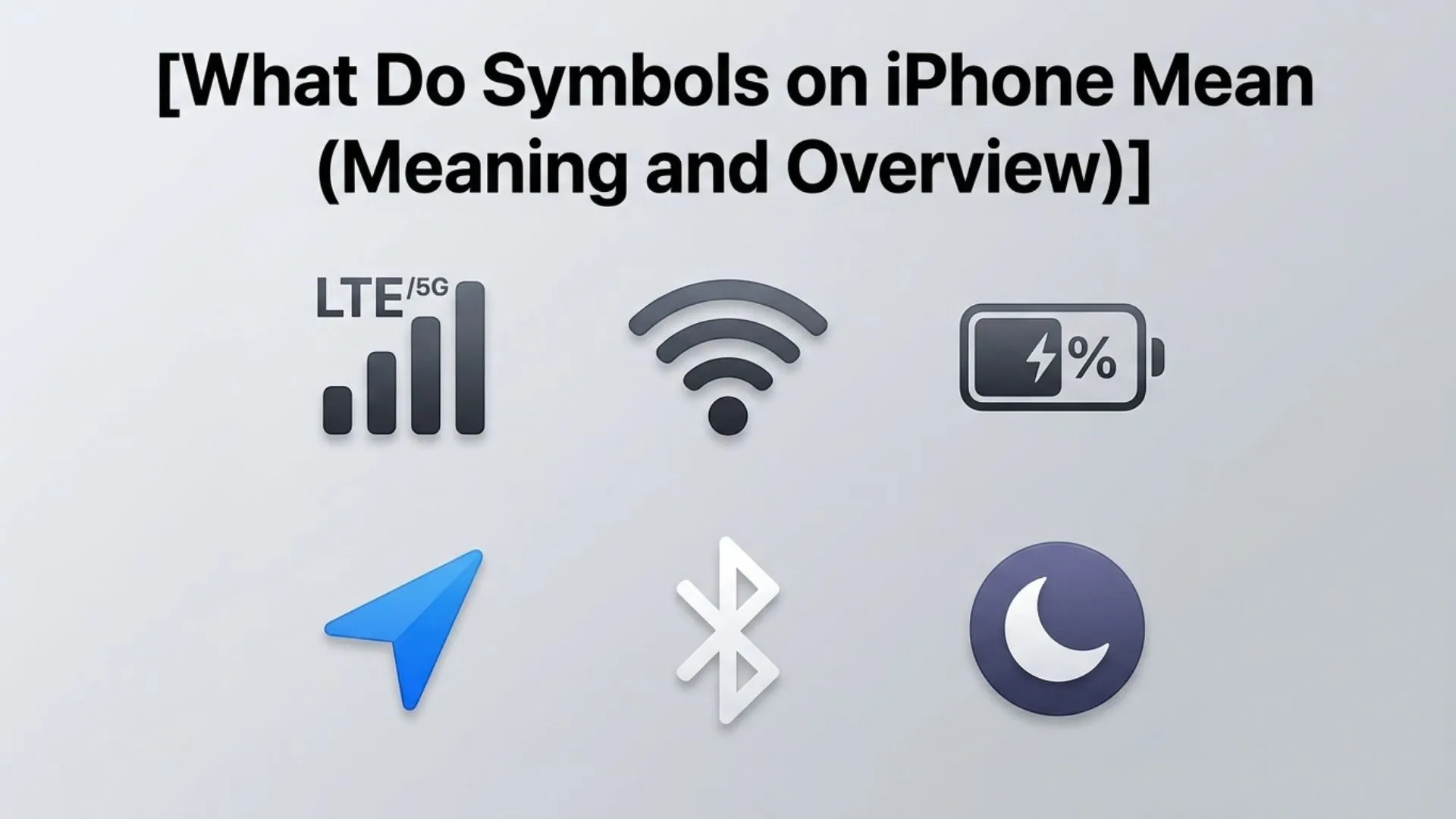
iPhone symbols are standardized icons that appear in the status bar, Control Center, Lock Screen, Settings app, and various Apple applications. Each icon acts as a communication symbol, providing quick information about your device’s current status or a feature that is active.
These visual representations eliminate the need for lengthy notifications by displaying essential information in a simple, universally recognized format.
Common categories of iPhone symbols include:
- Network and connectivity icons
- Battery and charging indicators
- Privacy indicators
- Focus mode symbols
- Location services icons
- Audio and Bluetooth symbols
- Security indicators
- System status icons
Together, these symbols create an intuitive user experience and help users understand what their iPhone is doing at any moment.
History and Origin
Apple has used status icons since the original iPhone debuted in 2007. Early devices displayed only a handful of symbols, including signal strength, Wi-Fi, battery level, and carrier information.
As iOS evolved, Apple introduced new icons to reflect additional features such as Bluetooth, AirPlay, Personal Hotspot, Face ID, Focus modes, Low Power Mode, and privacy protections.
One of the biggest changes came with iOS 14, when Apple introduced the orange and green privacy indicators. These icons inform users whenever an app accesses the microphone or camera, improving transparency and security.
Today, iPhone symbols continue to evolve as Apple introduces new technologies, including 5G connectivity, satellite communication, and enhanced accessibility features.
Types, Variations, or Categories
iPhone symbols can be grouped into several major categories.
Network Symbols
These icons show your connection to cellular and wireless networks.
Examples include:
- Cellular signal bars
- Wi-Fi
- 5G
- LTE
- Airplane Mode
- Personal Hotspot
Device Status Symbols
These indicate your iPhone’s current operating condition.
Examples include:
- Battery level
- Charging
- Low Power Mode
- Rotation Lock
- Alarm
- Bluetooth
Privacy and Security Symbols
Apple uses these icons to inform users about sensitive system activity.
Examples include:
- Orange microphone indicator
- Green camera indicator
- Location Services arrow
- VPN icon
Common iPhone Symbols and Their Meanings
Cellular Signal Bars
The vertical bars in the upper-left or upper-right corner indicate your cellular signal strength.
More bars generally mean:
- Better call quality
- Faster mobile data
- Stronger network connection
Fewer bars may result in slower speeds or dropped calls.
Wi-Fi Symbol
The Wi-Fi icon indicates your iPhone is connected to a wireless network.
If the icon disappears, your device is using cellular data instead.
5G, LTE, and 4G Symbols
These symbols identify the type of mobile network currently in use.
- 5G: Fastest available mobile network
- LTE: Long-Term Evolution cellular service
- 4G: Fourth-generation mobile network
Network availability depends on your carrier and location.
Airplane Mode
The airplane icon means wireless radios for cellular communication have been turned off.
When enabled:
- Phone calls are disabled
- Cellular data is unavailable
- Wi-Fi and Bluetooth can still be turned on manually
Airplane Mode is commonly used during flights or when troubleshooting connectivity issues.
Battery Symbol
The battery icon displays your remaining battery charge.
A green battery usually indicates normal operation, while a red battery means the charge is critically low.
When connected to power, a lightning bolt appears inside or next to the battery symbol.
Low Power Mode
A yellow battery icon indicates that Low Power Mode is enabled.
This feature reduces background activity to extend battery life.
It temporarily limits functions such as:
- Background app refresh
- Automatic downloads
- Some visual effects
Relevant Subsection: Privacy Indicator Symbols
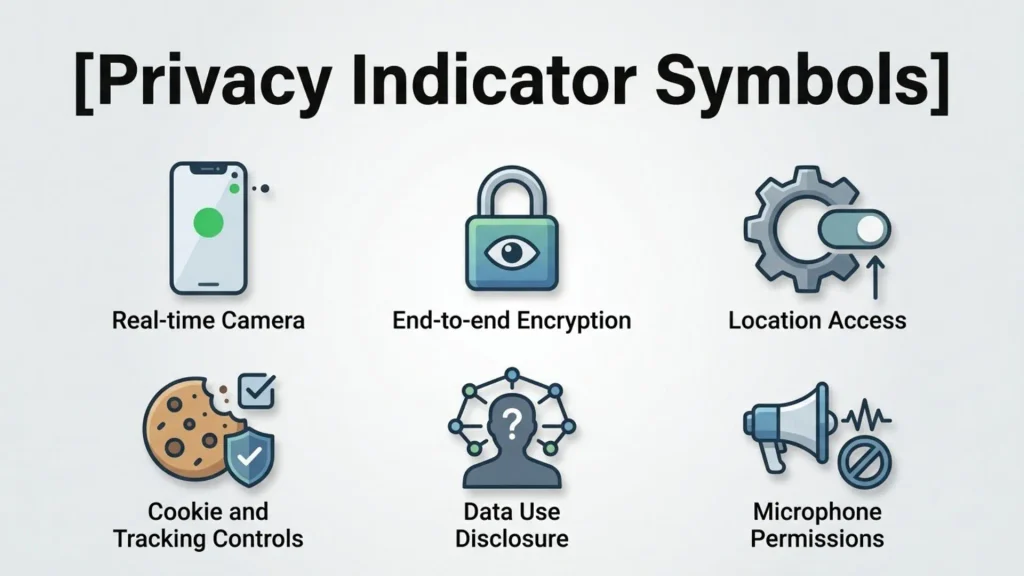
Apple introduced privacy indicators to increase transparency.
Orange Dot
An orange dot appears when an app is actively using your iPhone’s microphone.
Examples include:
- Voice recording
- Phone calls
- Voice messaging
If you see this icon unexpectedly, you may want to check which app is accessing the microphone.
Green Dot
A green dot indicates that an app is using the camera.
In some cases, the green indicator also appears when both the camera and microphone are active simultaneously.
These indicators help users monitor app activity in real time.
Relevant Subsection: Focus Mode Icons
Focus modes reduce distractions by limiting notifications.
Common Focus icons include:
Crescent Moon
Represents Do Not Disturb mode.
Notifications are silenced unless you’ve allowed specific contacts or apps.
Person Icon
May represent Personal Focus mode.
Briefcase
Indicates Work Focus is active.
Bed
Shows Sleep Focus mode.
These symbols appear in the status bar and Lock Screen while a Focus mode is enabled.
Relevant Subsection: Location Services Symbol
The arrow icon indicates that an app is using—or has recently used—your location.
Different arrow styles have different meanings:
- Solid arrow: Location is actively being used.
- Hollow arrow: An app may request your location under certain conditions.
- Purple arrow: Location was recently accessed.
You can manage location permissions in the Privacy & Security settings.
Other Common iPhone Symbols
Bluetooth Symbol
The Bluetooth icon shows that Bluetooth is turned on.
It may also indicate an active connection to:
- AirPods
- Wireless headphones
- Apple Watch
- Car audio systems
- Bluetooth speakers
Alarm Clock
The alarm icon appears when an alarm has been set in the Clock app.
Rotation Lock
A padlock with a circular arrow indicates that screen rotation is locked.
Your display will remain in portrait mode even if you rotate the device.
VPN Symbol
The VPN icon appears whenever your iPhone is connected to a Virtual Private Network.
VPNs help improve privacy and secure internet connections.
Personal Hotspot
This icon appears when your iPhone is sharing its internet connection with another device.
Satellite Symbol
On supported iPhone models, a satellite icon may appear when using satellite-based emergency communication features in areas without cellular coverage.
Common Uses and Applications
iPhone symbols help users monitor their devices quickly and efficiently.
They are commonly used for:
Device Monitoring
Users can instantly check:
- Battery level
- Network strength
- Charging status
Privacy Awareness
Camera and microphone indicators increase transparency by showing when sensitive hardware is in use.
Connectivity
Symbols help users determine whether they are connected through:
- Wi-Fi
- Cellular data
- Bluetooth
- VPN
Accessibility
Icons provide visual feedback that makes device status easier to understand without opening multiple settings menus.
Symbolism, Significance, or Importance
Although iPhone symbols are primarily functional rather than decorative, they play an essential role in user experience.
Their symbolic significance includes:
- Faster communication
- Improved privacy
- Better device management
- Enhanced accessibility
- Increased security awareness
- Simplified navigation
Each icon is designed to communicate important information at a glance, reducing the need for text-based notifications.
This consistent visual language helps millions of users operate their devices efficiently.
How to Use iPhone Symbols
Most symbols are automatic and require no user interaction.
However, you can manage many of them through Settings.
Check Control Center
Swipe down from the top-right corner to view additional system icons and shortcuts.
Review Privacy Permissions
Open:
Settings > Privacy & Security
to control microphone, camera, and location access.
Customize Focus Modes
Go to:
Settings > Focus
to create or modify Focus profiles.
Monitor Battery Usage
Visit:
Settings > Battery
to view battery health and identify apps consuming excessive power.
Interesting Facts
- Apple carefully designs every iPhone symbol to remain recognizable even at very small sizes.
- The green and orange privacy indicators were introduced to improve user trust and transparency.
- Focus mode icons can be customized with different symbols and colors.
- Some icons appear only on specific iPhone models or versions of iOS.
- Satellite communication icons are available only on supported devices with compatible services.
- Many iPhone symbols follow Apple’s Human Interface Guidelines for consistency across apps and devices.
- The battery icon has remained one of the most recognizable smartphone symbols since the original iPhone.
Common Mistakes or Misconceptions
Assuming Every Symbol Indicates a Problem
Many icons simply show that a feature is active rather than warning of an issue.
Ignoring Privacy Indicators
The orange and green dots are important security features and should not be overlooked.
Confusing Wi-Fi with Cellular Data
A strong Wi-Fi icon does not necessarily mean your cellular connection is also strong.
Thinking Symbols Never Change
Apple occasionally updates icon designs and introduces new symbols with major iOS releases.
Misinterpreting Focus Icons
Focus symbols indicate customized notification settings, not device errors.
Frequently Asked Questions
What do the orange and green dots on an iPhone mean?
The orange dot indicates that an app is using your microphone, while the green dot means an app is using the camera or both the camera and microphone.
Why is my battery icon yellow?
A yellow battery icon means Low Power Mode is enabled to help extend battery life.
What does the moon symbol mean on an iPhone?
The crescent moon indicates that Do Not Disturb or another Focus mode is active.
Why do I see a location arrow?
The location arrow means an app is using or has recently used your device’s location through Location Services.
What does the VPN icon mean?
The VPN icon indicates your iPhone is connected to a Virtual Private Network, which helps secure your internet connection.
Why does the Bluetooth icon appear?
It means Bluetooth is turned on and may be connected to accessories such as AirPods, speakers, or an Apple Watch.
How can I learn what a new iPhone symbol means?
Most symbols can be identified by checking the Control Center, the Settings app, or Apple’s official user documentation for your version of iOS.
Conclusion
Understanding what symbols on iPhone mean can make using your device easier, safer, and more efficient. From connectivity and battery indicators to privacy dots, Focus mode icons, and location arrows, each symbol provides valuable information about your iPhone’s current status. Rather than viewing these icons as confusing graphics, think of them as a universal communication system designed to keep you informed with just a quick glance.
As Apple continues to introduce new features and privacy protections, new symbols may appear in future iOS updates. By familiarizing yourself with the most common icons and their meanings, you’ll be better equipped to manage your device, troubleshoot problems, and take full advantage of everything your iPhone has to offer.
Meta Description: Learn what symbols on iPhone mean with this complete guide to status bar icons, privacy indicators, battery symbols, Wi-Fi, 5G, and other common iPhone icons.

Daniel Carter is a writer and researcher focused on symbols, their meanings, origins, and practical uses. He enjoys turning complex symbolic concepts into simple, easy-to-understand explanations for everyday readers. Through his work, Daniel explores cultural, technical, historical, and commonly used symbols, helping readers understand what they mean and where they are used.
His work includes The Complete Guide to Symbols, Understanding Symbols and Their Meanings, and A Visual Guide to Common Symbols.